Separate inverted detail from generally broken shading
If grooves look raised or detail reacts strangely when a light moves, check texture decoding, coordinate space and mesh tangents in that order. A normal map stores a direction used for shading, rather than height itself. This guide targets 3D Lit shading in Unity 2022.3 LTS, URP 14 and Shader Graph 14.
1. Check texture import
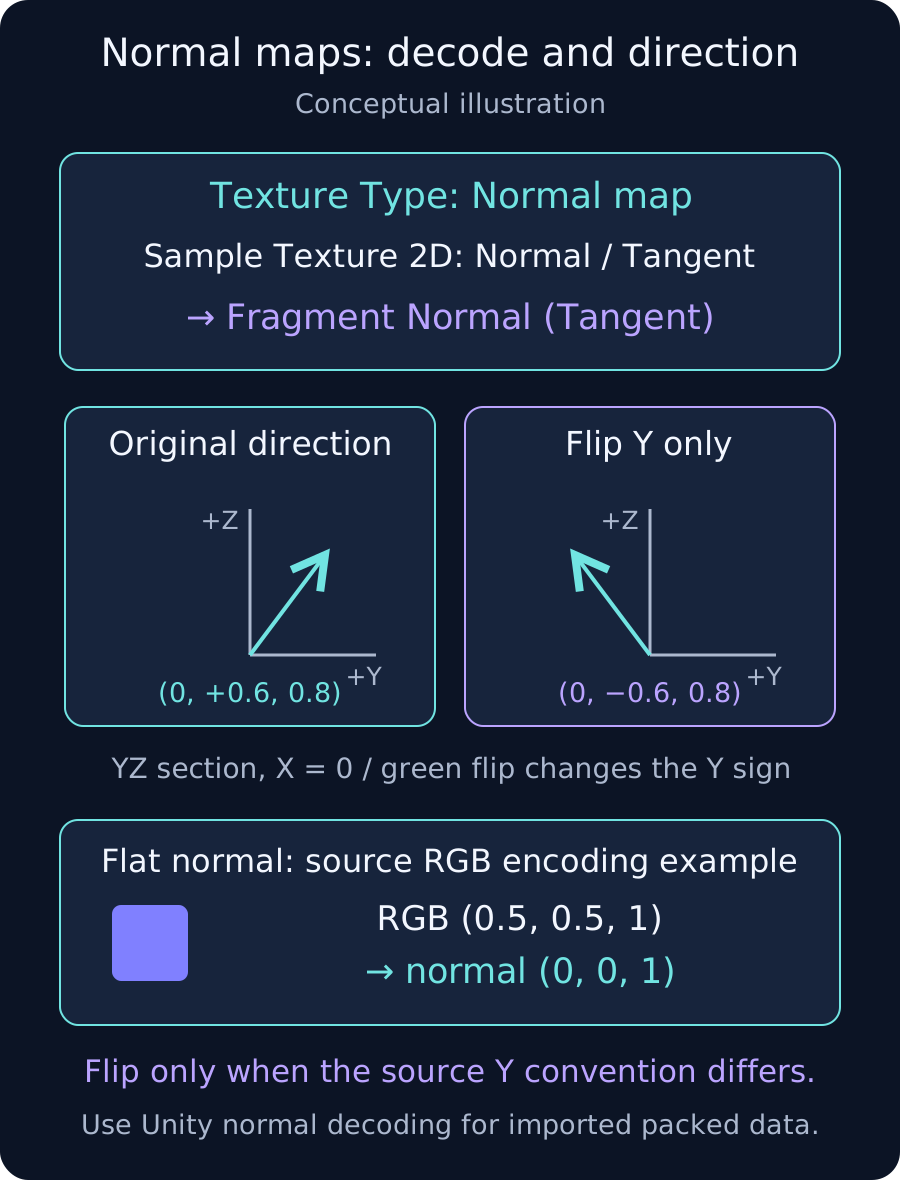
Select the image, set Texture Type to Normal map and Apply. Leave Create From Grayscale disabled for an image already exported as an RGB normal map; generating normals from a grayscale height image is a different operation. Use normal-map import rather than treating direction data as an sRGB color texture.
In uncompressed source RGB encoding, approximately (0.5, 0.5, 1) represents tangent-space (0, 0, 1), aligned with the original surface normal. Imported compression and packing can differ, so this explanation is not a replacement for Unity's normal decoding.
2. Decode exactly once in Shader Graph
For a conventional tangent-space normal map, set Sample Texture 2D to Type Normal and Space Tangent. Connect RGB to the Fragment Normal (Tangent Space) block, checking the receiving block's space too. Adding Normal Unpack or applying another “×2−1” after this normal sample decodes it twice.
If you combine world-space or object-space values, transform them to the space expected by the final input. First compare a minimal graph without extra blending or deformation. These instructions do not directly cover object-space normal images or the 2D Renderer's normal workflow.
3. Flip green only for a Y-convention mismatch
If the source uses a different normal-map Y convention, test Flip Green Channel in Import Settings. It reverses only the green/Y component; it is not a general shading repair. Preserve the original image and toggle the import setting while lighting a recognizable groove or protrusion from several directions. Compare with the source application's intended result.
Avoid flipping at export, import and in the shader simultaneously. The name of the graphics API alone is not enough to decide that every normal map needs a flip.
4. If only some meshes fail, inspect tangents and UVs
- Test the same image in a URP/Lit material's Normal Map slot. A simple plane working while the original mesh fails helps isolate model-specific conditions.
- Check that the mesh has normals and tangents. Compare its UVs, vertex normals and geometry with those used when baking the normal map.
- If tangents are missing, choose suitable Import or Calculate settings on the model. Recalculating is not automatically better: the runtime tangent basis should match the bake.
- Inspect UV seams, mirrored regions, negative scale and custom vertex deformation. Deformed positions may also require corresponding normals and tangents.
Verify from more than one light direction
- Compare against normal strength zero to isolate the normal path.
- Move a light above, below and to either side, checking grooves, protrusions and UV borders.
- Check the target device's compression settings as well as the Editor.
If the problem remains at zero normal strength, also investigate vertex normals, lighting and material properties such as Smoothness. Forcing a green flip to match one angle can hide a different cause.