Unity's uGUI (Canvas system) is a versatile and intuitive framework for building rich user interfaces. However, as your game grows and screens like HUDs, inventory grids, skill trees, and shop menus scale up, developers often encounter a mysterious drop in performance.
One of the most frustrating bottlenecks is when CPU usage spikes under EventSystem.Update and GraphicRaycaster.Raycast, even when the player is not clicking or interacting with the UI. In the Unity Profiler, these two calls can frequently sit at the very top of the CPU consumer list.
This article explains why this input raycasting overhead occurs and provides a practical guide to optimizing UI performance through bulk-disabling of "Raycast Target" and proper Canvas segmentation.
1. The Root Cause: The "Full Scan" Iterator of GraphicRaycaster
Under the hood, uGUI's event detection mechanism checks for clicks and mouse hovers in a brute-force manner.
Every frame, if a mouse pointer or touch point is active, the EventSystem requests active GraphicRaycaster components in the scene to determine which UI elements are under the pointer. The raycaster processes this request through the following steps:
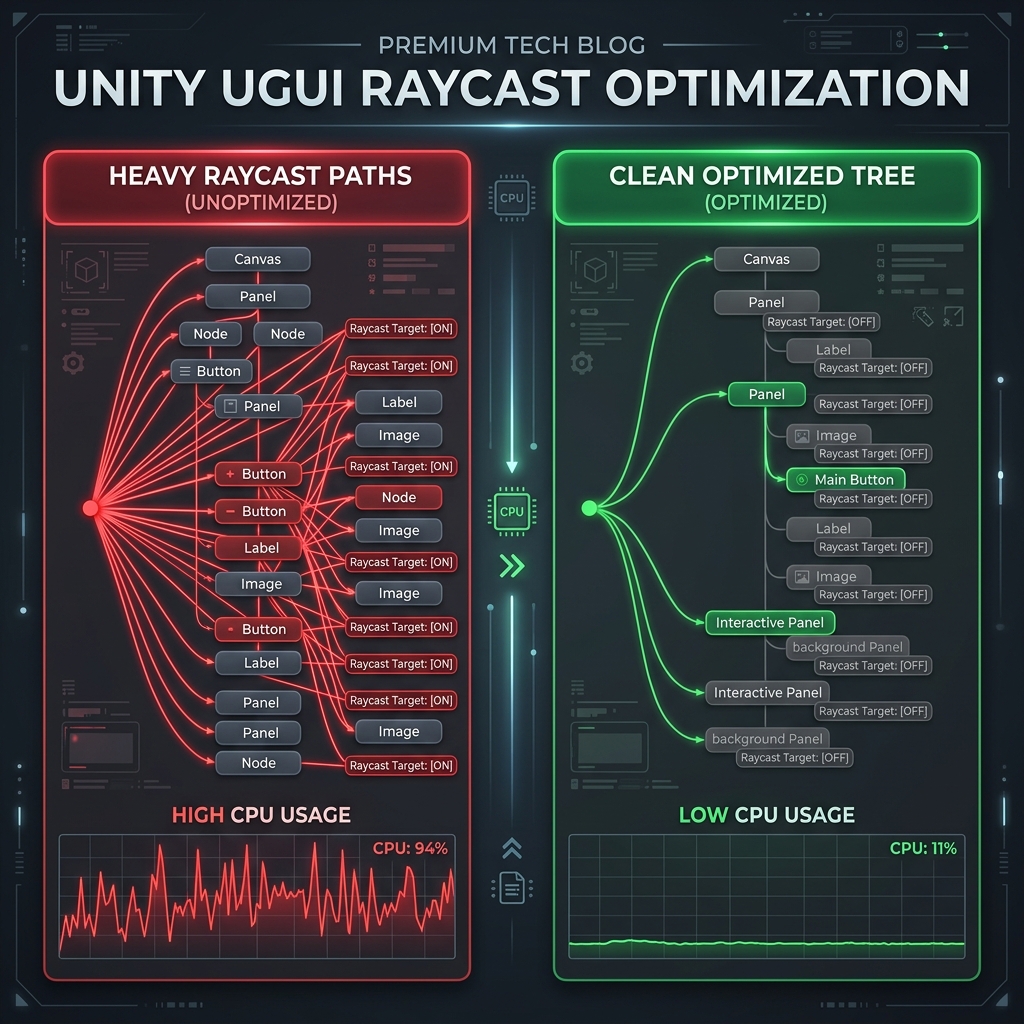
Figure: Inefficient execution checking hundreds of inactive Raycast Targets sequentially every frame
- Gather Graphic Components: It searches the hierarchy under its Canvas for all active UI graphic elements (like
Image,RawImage,Text, andTextMeshProUGUI). - Filter by Raycast Target: It filters this list to keep only components where the
Raycast Targetproperty is checked (true). - Check Intersection (Loop): It iterates through the filtered list, testing whether the pointer coordinates fall within each element's bounding box (RectTransform).
The core issue is that whenever you create a new Image or Text component in Unity, "Raycast Target" is enabled by default.
This means background decoration borders, shadow overlays, and static label texts—which never need to respond to user interactions—are included in the raycast loop. When a scene contains hundreds or thousands of UI elements, this brute-force loop consumes significant CPU cycles, leading to lag spikes even during idle frames.
2. Profiling: Identifying Raycast Bottlenecks
You can identify this bottleneck in the Unity Profiler with these steps:
- Open the Profiler (
Window > Analysis > Profiler) and run your game. - Select the CPU Usage module and open a UI-heavy screen (moving the mouse cursor rapidly makes the overhead more obvious).
- Switch the details panel from Timeline to Hierarchy view and sort by "Total %".
- Locate and expand
EventSystem.Update, then inspect the execution time ofGraphicRaycaster.Raycast.
If GraphicRaycaster.Raycast consumes 0.5ms to 2.0ms or more, your UI is wasting CPU cycles on unnecessary input checks. While a few milliseconds might seem small, it represents a substantial portion of your frame budget on mobile and VR platforms, or when targeting high frame rates (e.g., 90fps or 120fps).
3. Solution 1: Bulk-Disabling Unnecessary Raycast Targets
The most effective fix is to disable Raycast Target on all Graphic components that do not require click, hover, or drag detection.
Manually unchecking this property in the Inspector for hundreds of existing elements is tedious and error-prone. To streamline this process, use an editor utility to scan your active selection and disable unnecessary targets automatically.
Raycast Target Optimization Script
Save the following script under your project's Assets/Editor/ folder:
using UnityEngine;
using UnityEngine.UI;
using UnityEditor;
using TMPro;

public class RaycastTargetOptimizer : EditorWindow
{
    [MenuItem("Tools/UI/Optimize Raycast Targets")]
    public static void ShowWindow()
    {        GetWindow<RaycastTargetOptimizer>("UI Optimizer");
    }

    private void OnGUI()
    {
        GUILayout.Label("uGUI Raycast Target Optimizer", EditorStyles.boldLabel);
        GUILayout.Space(10);

        if (GUILayout.Button("Disable Unnecessary Raycast Targets in Selection"))
        {            OptimizeSelectedUI();
        }
    }

    private static void OptimizeSelectedUI()
    {
        int modifiedCount = 0;
        GameObject[] selectedObjects = Selection.gameObjects;

        if (selectedObjects.Length == 0)
        {            Debug.LogWarning("No GameObject selected. Please select UI roots in the Hierarchy.");
            return;
        }

        foreach (var root in selectedObjects)
        {
            // Optimize Image Components
            Image[] images = root.GetComponentsInChildren<Image>(true);
            foreach (var img in images)
            {
                // Verify the component or its parent doesn't hold input trigger scripts
                if (img.raycastTarget && !IsInteractiveElement(img.gameObject))
                {                    Undo.RecordObject(img, "Disable Raycast Target");
                    img.raycastTarget = false;
                    modifiedCount++;
                }
            }

            // Optimize TextMeshProUGUI Components
            TextMeshProUGUI[] tmps = root.GetComponentsInChildren<TextMeshProUGUI>(true);
            foreach (var tmp in tmps)
            {
                if (tmp.raycastTarget && !IsInteractiveElement(tmp.gameObject))
                {                    Undo.RecordObject(tmp, "Disable Raycast Target");
                    tmp.raycastTarget = false;
                    modifiedCount++;
                }
            }
        }

        Debug.Log($"Optimization Completed! Disabled Raycast Target on {modifiedCount} components.");
    }

    private static bool IsInteractiveElement(GameObject go)
    {
        // Check if the GameObject contains any standard interactive components
        if (go.GetComponent<Button>() != null ||
            go.GetComponent<Toggle>() != null ||
            go.GetComponent<Slider>() != null ||
            go.GetComponent<ScrollRect>() != null ||
            go.GetComponent<InputField>() != null ||
            go.GetComponent<TMP_InputField>() != null ||
            go.GetComponent<UnityEngine.EventSystems.EventTrigger>() != null)
        {            return true;
        }
        return false;
    }
}
How to use: In the Hierarchy window, select your root UI objects (like your Canvas or menu container), open Tools > UI > Optimize Raycast Targets, and click the button. The script will automatically uncheck Raycast Target on all non-interactive components while supporting Undo operations.
4. Solution 2: Canvas Segmentation (Sub-Canvases)
Beyond disabling individual targets, structural organization through Canvas Segmentation provides a second layer of optimization.
Because the GraphicRaycaster works per Canvas, mixing dynamic elements (like animated health bars or floating combat text) with static backgrounds inside a single Canvas causes two performance penalties:
- Rebuild Overhead: Moving a single UI element forces the entire Canvas to rebuild its mesh, which increases both CPU and GPU rendering time.
- Inefficient Scanning: Moving the mouse cursor over static regions still scans every element inside the canvas for pointer events.
Best Practice: Multi-Canvas Architecture
Organize your UI into nested Sub-Canvases based on their update frequency and interaction needs:
- Static Canvas: Contains borders, background images, and constant texts. Remove the
GraphicRaycastercomponent completely from this Canvas. - Dynamic Canvas: Holds moving health bars, timers, or particle effects. Remove the
GraphicRaycastercomponent completely from this Canvas. - Interactive Canvas: Houses clickable buttons, dropdowns, and text fields. Keep the
GraphicRaycastercomponent attached, and only enable Raycast Target on interactive elements.
[Root Canvas] (No input detection required)
  ├── [Static Sub-Canvas] (Static backgrounds / *Remove GraphicRaycaster*)
  │     └── Image (Raycast Target: Off)
  │
  ├── [Dynamic Sub-Canvas] (Animated HUDs / *Remove GraphicRaycaster*)
  │     └── HP Bar, Damage Popups (Raycast Target: Off)
  │
  └── [Interactive Sub-Canvas] (Interactive elements / *Keep GraphicRaycaster*)
        └── Button, ScrollRect (Only interactive elements have Raycast Target: On)
Figure: Dividing canvases and managing components based on interaction roles
By removing the GraphicRaycaster from canvases that do not require interaction, the EventSystem skips scanning them entirely, reducing the Raycast search space and dropping CPU overhead close to zero.
5. Solution 3: Cleaning Up EventSystem Modules
You can also optimize the `EventSystem` configuration. By default, the `EventSystem` object includes raycast modules that query 3D space, such as PhysicsRaycaster or Physics2DRaycaster attached to cameras.
If your game does not require clicking 3D objects (like characters or boxes in the scene) via the UI pointer system, verify that these components are removed from your cameras. Leaving them enabled triggers physical raycasts against 3D colliders every frame, adding physics-related CPU overhead.
6. Summary: uGUI Performance Optimization Checklist
Use this checklist before releasing your game to keep your UI rendering efficiently:
| Optimization Item | Recommended Action | Benefit |
|---|---|---|
| Static Graphics | Disable Raycast Target on all background images, icons, and text labels. |
Directly reduces loop iteration count inside GraphicRaycaster.Raycast. |
| Canvas Segmentation | Split static and dynamic elements into sub-canvases; remove GraphicRaycaster from non-interactive containers. |
Prevents unnecessary Canvas rebuilds and bypasses raycaster iterations entirely. |
| Physics Raycasters | Remove PhysicsRaycaster and Physics2DRaycaster from cameras if 3D clicking is unused. |
Eliminates physics queries, saving CPU overhead during active mouse movements. |
| Pixel Perfect | Disable Pixel Perfect on canvases that scroll or contain animated UI elements. |
Saves CPU cycles by omitting pixel alignment calculations every frame. |
Optimizing input raycasting is a vital tuning step for games with large UI hierarchies or when targeting performance-constrained platforms like mobile and VR. By addressing default "Raycast Target: On" settings and segmenting your canvases, you can deliver responsive and fluid user interfaces.