Separate emission position from existing-particle movement
If a running character drags smoke along, or a following aura remains behind, inspect Simulation Space in the Particle System Main module. Moving the emitter changes where new particles appear; the reference frame determines how existing particles respond to Transform movement. This guide targets the standard Particle System in Unity 2022.3 LTS.
1. Choose Local, World or Custom for the intended effect
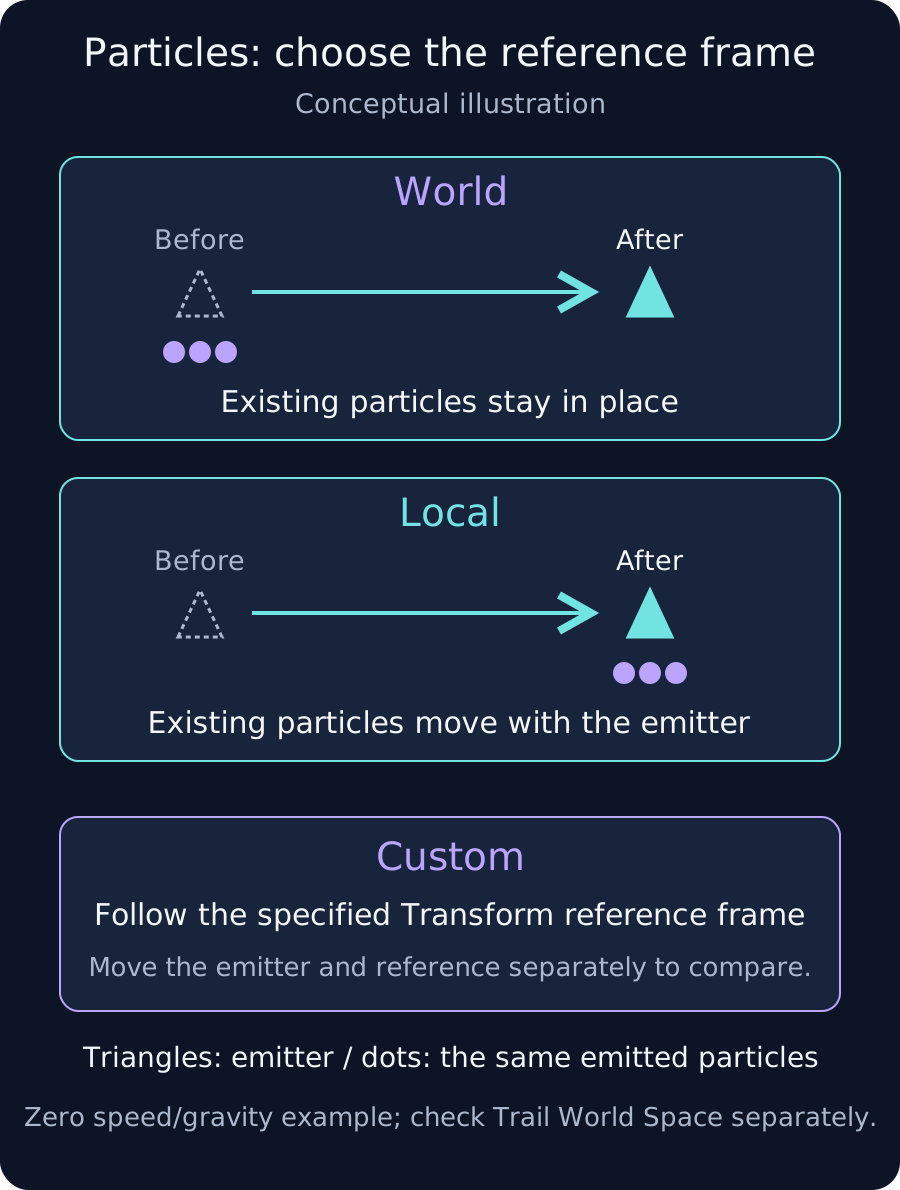
- Local: simulate in the Particle System's local frame. Transform movement and rotation, including its parents, affect existing particles. This can suit an aura attached to a character.
- World: simulate in world coordinates. Existing particles do not follow merely because the emitter moves, which can suit smoke left along a path. Particle velocity, gravity, Noise and other motion still apply.
- Custom: use a specified Transform as the reference frame. This can follow a moving group independently of the emitter; check the Custom Simulation Space reference.
Decide which frame existing particles should follow before changing parenting. Local space alone does not attach existing particles to a deforming animated mesh surface.
2. Compare the same particles with one Burst
- Keep a diagnostic Particle System in camera view. Disable Looping, set Rate over Time to zero and create one Burst at time zero.
- Use roughly 10 seconds of Start Lifetime, zero Start Speed and zero Gravity Modifier. Temporarily disable added motion such as Noise and Velocity over Lifetime. These settings isolate the reference frame.
- After the Burst, move the Particle System GameObject sideways. Compare particles remaining in place with World against following the emitter with Local.
- Stop and clear before restarting with another Simulation Space. For Custom, move the emitter and reference Transform separately to identify which movement affects the particles.
Continuous emission makes new particles difficult to distinguish from older ones. A single Burst lets you compare the same particles. Switching space while particles remain alive needs separate verification; do not assume their appearance is preserved.
3. Check Trails and velocity separately
The Trails module's World Space option controls whether trail vertices remain in the world. It can leave trails in world space even with Local particle simulation. If particle bodies behave correctly but lines stretch unexpectedly, compare that setting and trail lifetime.
Inherit Velocity contributes emitter velocity to particle motion. The 2022.3 documentation specifies World Simulation Space for this module. Changing to Local need not preserve the same motion. Complete the reference-frame test first, then restore motion modules one at a time.
4. Check teleporting and old particles during reuse
For pooled effects, check whether particles from a previous use remain when the emitter moves to a new location. For an independent new effect, let its owner manage stopping, clearing, setting the Transform and replaying in the intended order.
StopEmitting stops new emission while leaving existing particles alive. StopEmittingAndClear is a candidate for immediate removal, but effects intended to dissipate naturally need a different policy. Inspect child Particle Systems as part of the same lifetime and reuse design.
Verify the complete effect
- Test straight movement, sharp turns, stops and parent rotation, distinguishing existing particles from new ones.
- For scale issues, inspect Scaling Mode as well as Simulation Space.
- Restore Trails, child effects and pooling, then repeat playback.
- In the target Player, check reappearance after leaving camera view and behavior across scene changes.
The diagram uses zero particle speed and gravity. In the restored effect, assess reference-frame movement together with each particle's own motion.