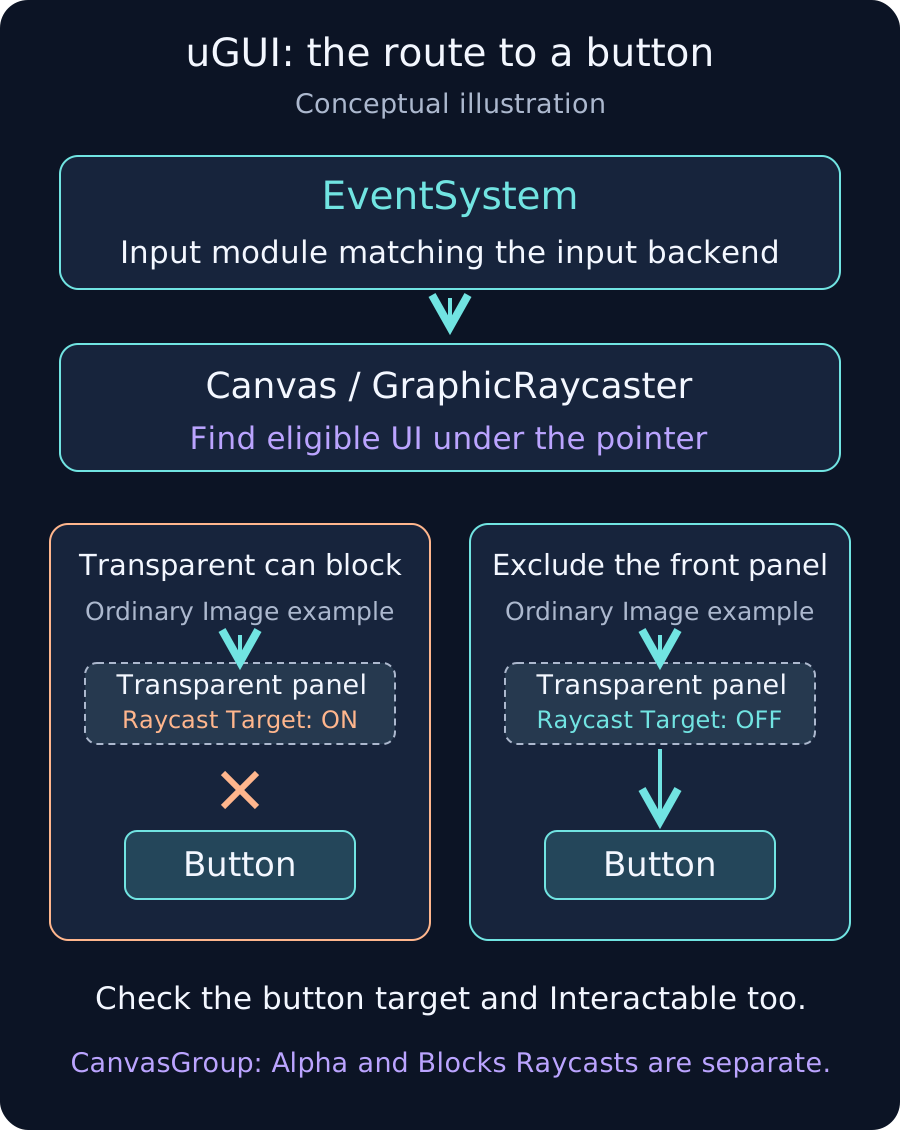
Narrow the input path from the affected area
If every button fails, start with the EventSystem and input module. If only some buttons fail, inspect frontmost UI and parent CanvasGroups. If hover or press feedback works but the action does not, inspect On Click. This guide targets uGUI in Unity 2022.3 LTS; the Input System instructions use version 1.6 as their reference.
1. Check the EventSystem and input backend
- For an ordinary single-player UI, identify one intended active EventSystem and input module. Check additive scenes and DontDestroyOnLoad objects for unintended duplicates.
- Determine whether the UI uses StandaloneInputModule with the legacy Input Manager or InputSystemUIInputModule with the Input System. Check that Active Input Handling matches the backend you intend to use.
- For InputSystemUIInputModule, inspect Actions Asset and mappings such as Point and Left Click. Working gameplay actions alone do not establish that the UI actions are configured correctly.
Separate EventSystems for multiplayer UI require a different setup. Adding an EventSystem to every scene without identifying the existing one can create further problems.
2. Check the Canvas and button targets
Verify that the relevant Canvas has an enabled GraphicRaycaster. Keep at least one appropriate Graphic, such as the button Image, eligible as a Raycast Target. Decorative text can be excluded, but disabling every Graphic inside the button can remove its pointer target.
For Screen Space - Camera and World Space, inspect camera references, output display, facing direction and GraphicRaycaster blocking settings. Trace the Canvas Graphic route rather than assuming that adding a PhysicsRaycaster fixes UI input.
3. Inspect transparent front panels
An ordinary transparent Image can still block UI behind it when Raycast Target is enabled. Temporarily disable a faded full-screen panel or loading overlay and test the same button position. If it starts working, investigate that panel's input state during show and hide transitions.
CanvasGroup Alpha, Interactable and Blocks Raycasts have separate roles. Setting Alpha to zero alone does not configure pointer pass-through. Exclude a decorative panel with Raycast Target, or disable Blocks Raycasts on a suitably scoped CanvasGroup. Keep the button and required parents eligible for input.
4. Separate interaction eligibility from On Click
Inspect Button Interactable and the parent CanvasGroup's Interactable, Blocks Raycasts and Ignore Parent Groups. If press feedback works, check the On Click target object, function, missing references and Console exceptions.
Test a complete press and release inside the button. Dragging outside before release is a different operation, as is merely pressing down. Temporarily log entry to the existing callback to distinguish an event that never arrives from a failure inside the called logic.
Verify transitions and actual touch input
- Open, close and reopen the menu, checking every time.
- Check the intended input lock during a fade and its release afterward.
- Test mouse and target-device touch, including complete clicks, scrolling and dragging.
- Restore temporary panel changes and logs, and verify that modal dialogs still block underlying controls.
Enabling pass-through across every full-screen element can let a confirmation dialog activate controls behind it. Configure decorative panels, interactive regions and modal blockers according to their intended roles.