Start with the asset actually in use
If changing Render Scale or shadows has no effect, or switching Quality restores an old appearance, compare the asset you edited with the selected pipeline asset. This guide uses Unity 2022.3 LTS and URP 14 as its reference.
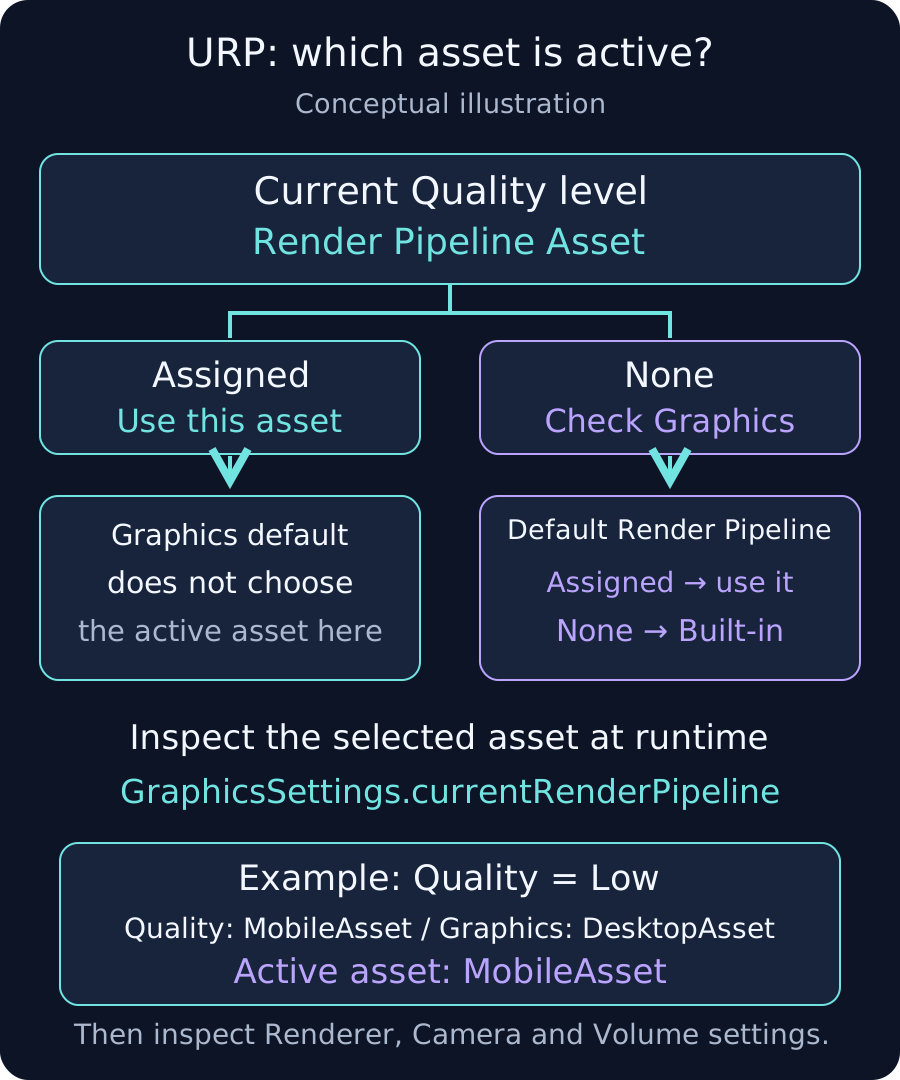
Quality overrides the Graphics default
An asset assigned to the current Quality level takes priority. If that field is None, Unity uses the Default Render Pipeline in Graphics. If both fields are None, Unity selects the Built-in Render Pipeline. Clearing only the Quality field does not necessarily select Built-in.
For example, with DesktopAsset in Graphics and MobileAsset assigned to Low, Low uses MobileAsset. Editing DesktopAsset alone will not change Low's pipeline settings.
Inspect settings in this order
- Open Edit > Project Settings > Quality. Note the current level and its Render Pipeline Asset reference.
- Select that referenced URP asset in the Project window and inspect the relevant value. Follow the Graphics default only when Quality has no override.
- Check the default Quality for the target platform. The level selected in the Editor need not match Player startup.
- Search startup code and settings menus for QualitySettings.SetQualityLevel. Check the selected asset again after a Quality change.
Log the selected asset at runtime
Save this as ActiveRenderPipelineReport.cs and attach it to a scene GameObject. During Play, choose “Log active render pipeline” from the component's context menu. It logs the current Quality name and selected asset without changing settings.
using UnityEngine;
using UnityEngine.Rendering;

public sealed class ActiveRenderPipelineReport : MonoBehaviour
{
    [ContextMenu("Log active render pipeline")]
    public void LogActivePipeline()
    {
        int index = QualitySettings.GetQualityLevel();
        string[] names = QualitySettings.names;
        string quality = index >= 0 && index < names.Length
            ? names[index]
            : index.ToString();
        RenderPipelineAsset asset = GraphicsSettings.currentRenderPipeline;
        string pipeline = asset != null
            ? asset.name
            : "Built-in Render Pipeline";
        Debug.Log($"Quality: {quality}; Pipeline: {pipeline}", this);
    }
}
ContextMenu is an Editor interaction. For a Player investigation, call LogActivePipeline() after startup settings have been applied or after a Quality change, then inspect the device log. A null GraphicsSettings.currentRenderPipeline means Built-in is selected at that point. If assets share a name, also check their actual Project references.
Then inspect Renderer and Camera settings
The URP asset and Universal Renderer Data are separate assets. For a Render Feature problem, follow the active URP asset's Renderer List and check the renderer selected by the affected Camera. Cameras can select different renderers within the same pipeline asset. For post-processing, also inspect the Camera's Post Processing option and the relevant Volume's application conditions.
Verify the intended Quality differences
- Switch through every supported Quality level and check its active asset and relevant value.
- Compare Editor and target Player logs at startup and after changing settings.
- Restore temporary diagnostic values and confirm that only intended Quality differences remain.
If separate assets are intentional, fix their references and values individually. Clearing every override before identifying the cause can remove device-specific choices. Unity 6 can use different UI labels and URP versions; consult the matching documentation for that environment.