Unity's Timeline and Cinemachine are powerful toolsets for creating cinematics and cutscenes. However, when performing "camera switching (blending)" by combining these, a serious glitch often occurs in which the character momentarily returns to the T pose (bind pose) and is drawn, and the camera tracking position suddenly shifts and becomes unsteady.
Specific symptoms of the problem
When using Cinemachine Shot Track in Timeline and switching or transitioning (blending) the camera from Virtual Camera A to B, the following phenomenon occurs.
- For just one frame after the switch, the character's mesh assumes the initial posture of T-pose.
- If the camera is set to follow the character's head or body (Follow/LookAt), the camera will momentarily point to the world origin or the initial position of the feet, causing severe screen shaking and warping.
- It may not occur during editor playback (Play Mode), but it often occurs on the built actual device (especially on mobile, VR, or environments where the frame rate is low).
Cause of defects and life cycle
The root cause of this phenomenon is Inconsistency (execution order discrepancy) where "Animator's pose writing timing" and "Cinemachine's tracking position calculation timing" are reversed within the same frame.
Normally, the character's animation is evaluated by the PlayableGraph generated by Timeline, and the pose is written to the bone's Transform through Animator. However, if the following conditions overlap, gaps in timing will occur.
- If Animator Controller is not set (None):
Animation Track in Timeline can play animation even if Animator Controller is not set. However, if the Controller does not exist, the internal state of the Animator will be cleaned up at the blend boundary of the Timeline or when switching clips, and the Transform will be temporarily cleared to the initial pose (T pose). - Inconsistency in update order (Update Timing):
The Update Mode of Playable Director is a special mode such as "DSP Clock", or the Update Mode of Animator is "Normal" and the Update Method of Cinemachine Brain is "Smart Update / Late". If it is not set to ``Update'', Cinemachine will calculate the camera position by referring to the Transform position of the old frame (or reset frame) before the animation pose is reflected in the Transform.
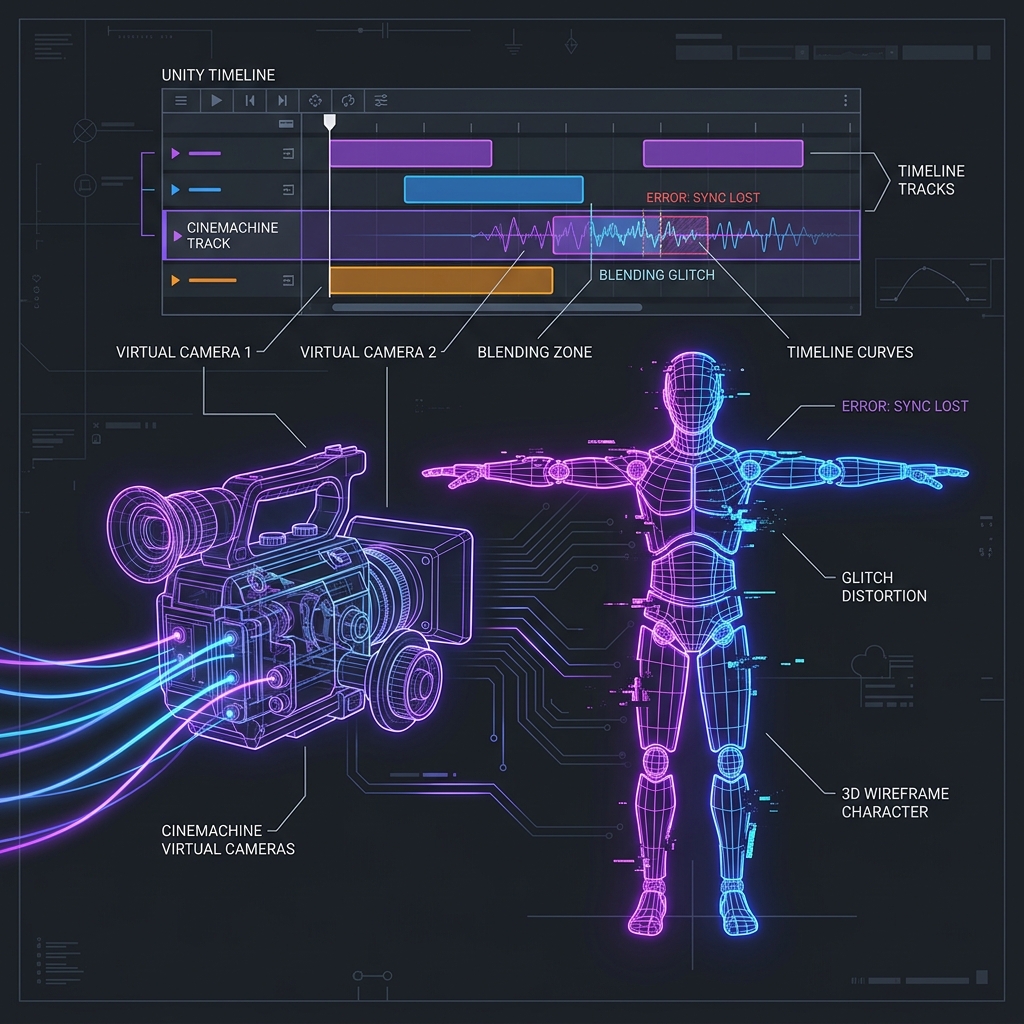
Figure: Discrepancy in evaluation order when switching timelines and mechanism of T-pose occurrence
Solution approach and specific countermeasure steps
Step 1: Attach an empty Animator Controller (most important)
The most effective and essential countermeasure is to never leave 'Controller' slot empty (None) of the Animator component to be animated.
- Create a new controller by right-clicking in the Project view and selecting
Create ➔ Animator Controller(the name can be something likeDummy_Timeline_Controller). - Double-click the controller you created to open the Animator window and make sure it is completely empty (no default state to transition from Entry, or one completely empty state).
- Attach this dummy controller to the
Controllerfield in the Animator component of the character you want to move in Timeline.
This prevents the Animator's internal reset processing even when the Timeline's internal evaluation changes, completely shutting out the phenomenon of returning to the T pose for just one frame.
Step 2: Synchronize update mode of Playable Director and Animator
Synchronize the movement timing of the Playable Director, which manages the entire Timeline, and the character's Animator.
- Playable Director component:
SetUpdate Modeto Game Time. This will synchronize with the normal in-game time (Update loop). - Animator component:
SetUpdate Modeto Normal (or match Playable Director inAnimate Physics). If you have settings such asKeep Animator StateorWrite Defaults, make sure that the initialization values are not overwritten after animation evaluation.
Step 3: Optimize Cinemachine Brain update method
Set the update timing of the Cinemachine Brain component attached to the Main Camera.
- Change the
Update Methodproperty to Smart Update. - If the character is a Rigidbody and does not physically move (pure animation), it is also effective to manually set it to Late Update. By selecting Late Update, the camera determines the tracking coordinates after the Animator's posture reflection for that frame (executed within Update) is 100% complete, which prevents stuttering and flickering.
Step 4: Order of Animation Track and Cinemachine Track in Timeline
In very rare cases, the order of tracks in the Timeline window (evaluation order) may have an effect.
In general, if there are tracks controlling the same object, Timeline evaluates them from top to bottom. Therefore, you can optimize the internal evaluation order by placing the Animation Track, which determines the character's pose, at the top, and the Cinemachine Track, which determines the camera position, at the bottom.
Summary
The T-pose bug that occurs in cinematic production using Timeline and Cinemachine is caused by a combination of settings that are often overlooked: ``Animator Controller not set'' and ``Inconsistent Update Method''. It is highly recommended that you standardize the workflow of assigning empty Animator Controllers to all characters within your project before you begin production.