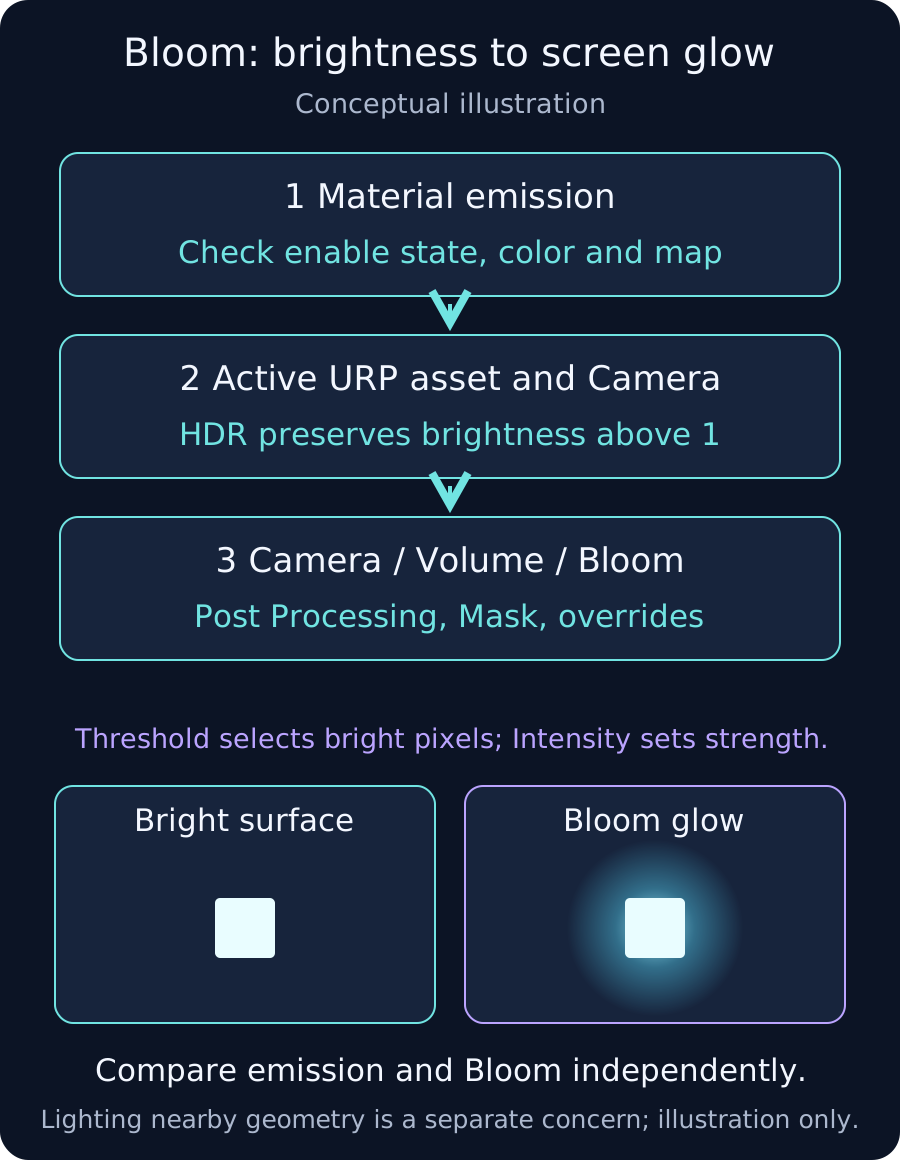
Separate emission brightness from Bloom glow
If stronger emission does not spread light beyond the object's outline, check material output, the HDR path, then Camera and Volume settings. Emission supplies surface brightness; Bloom is a post-processing effect using bright image regions. This guide targets 3D rendering in Unity 2022.3 LTS and URP 14.
1. Verify the material in a minimal scene
- Create a diagnostic scene with a Camera, dark background and Cube using URP/Lit. Identify the URP asset selected by the current Quality level.
- Enable material Emission and choose white or another bright Emission Color. Remove the Emission Map initially so dark texture regions do not reduce the test output.
- Increase Intensity using the HDR color input and toggle Emission to check that the surface changes. For a custom Shader Graph, compare with URP/Lit first to isolate the output path.
At this stage, verify the actual material and emission output. A bright environment can hide the difference, so keep comparison conditions simple.
2. Check the HDR path for brightness above one
Inspect HDR in the active URP asset and HDR Rendering on the affected Camera. A RenderTexture target can hide the Camera's HDR controls; inspect the target format and intermediate copies in that case. Clamping brightness into a narrower range can prevent stronger emission values from reaching Bloom distinctly.
LDR images can also produce Bloom with a sufficiently low Threshold. Check HDR when you need to preserve distinctions above one. This concerns the rendering buffer's range; HDR display output is a separate configuration.
3. Verify Camera and Volume application
- Enable Post Processing on the affected Camera.
- Create a diagnostic Global Volume and add Bloom to its Profile. Use Weight 1 and include the Volume's layer in the Camera's Volume Mask.
- Enable the Bloom component and override the parameters being tested. Compare with a nonzero Intensity, for example 1.
- In a diagnostic copy, isolate other contributing Volumes so their values do not obscure the comparison. When restoring the real scene, check Local Volume boundaries and Weight too.
URP includes Volume-based post-processing. Do not substitute instructions for installing Post Processing Stack v2 into this URP setup.
4. Adjust Threshold and Intensity separately
Threshold selects bright regions; Intensity controls effect strength. URP 14 defines Threshold in gamma-space brightness, so avoid comparing its Inspector number directly with linear shader RGB.
Temporarily reduce Threshold to zero and toggle Bloom. A visible difference suggests the application path is working. Restore Threshold and tune it with emission so only the intended regions glow. Zero Threshold affects a broad range of pixels and should be replaced with the intended final value after diagnosis.
Verify in the real rendering configuration
- Toggle Bloom to distinguish surface brightness from surrounding screen-space glow.
- Restore the original Volume setup and each Quality level, then compare Game view and target Player.
- Check narrow emissive details at different distances and resolutions, and measure GPU time on the target device.
- For illuminating nearby geometry, also design the actual lighting, such as Lights.
The example settings isolate behavior; they are not guaranteed final art or performance settings. Tune them for the actual resolution, device and rendering path.