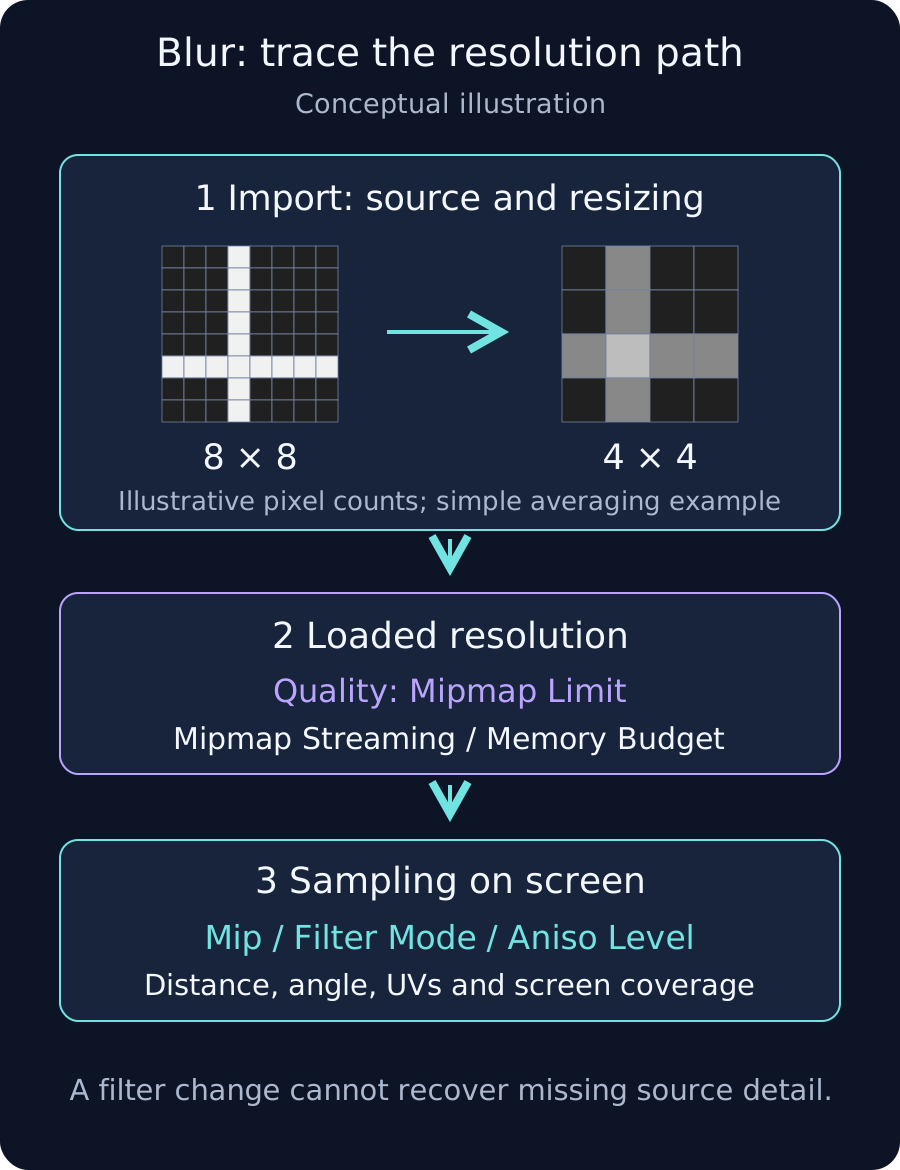
Separate distance, angle and platform differences
For a blurry imported texture, trace the source image, imported resolution, loaded mips and sampling on screen. Record whether it is coarse up close, blurry on an angled floor, or lower resolution only on a device. This guide targets ordinary 2D textures displayed in 3D using Unity 2022.3 LTS.
1. Inspect the source and platform override
Select the image and compare source pixel dimensions with Texture Importer Max Size. A 2048×2048 source can be downscaled when the target platform's Max Size is 512. Check Default and Android or iOS overrides separately, then Apply changes.
Raising Max Size cannot add detail absent from the source. Separate compression blocks or smearing from resolution reduction. In a diagnostic copy, compare weaker compression or an uncompressed format, noting the memory increase. Avoid changing every texture to maximum size and no compression as a blanket fix.
2. Inspect Quality mip limits and Streaming
If a Quality change causes the difference, inspect Global Texture Mipmap Limit and texture-specific exclusions or groups. In 2022.3, globalTextureMipmapLimit specifies how many highest-resolution mips are omitted. A value of one uses a half-size level on each axis, but the setting does not affect non-mipmapped textures.
If only streaming textures sharpen gradually or remain low resolution, inspect Texture Streaming Memory Budget and the relevant Camera. A small budget can reduce loaded resolution. Where needed, compare desiredMipmapLevel and loadedMipmapLevel to distinguish residency from insufficient source or import resolution.
3. For distance and angle changes, inspect mipmaps and filters
Mipmaps use smaller versions according to screen coverage to reduce shimmering. Disabling all mipmaps because distant textures look soft can increase aliasing. Compare from the same position, angle and output resolution first.
Point exposes texel boundaries when magnified, Bilinear interpolates neighboring texels, and Trilinear smooths transitions between mip levels too. None restores missing source detail. For angled floors, compare Aniso Level and the Quality anisotropic-filtering setting.
Point can suit pixel art with intentional hard texel boundaries; do not automatically apply the same choice to 3D ground and distant scenery. Custom shaders or Shader Graph samplers may also control sampling, so inspect their settings.
4. Separate UV stretching from full-image blur
Test the texture on a simple plane and compare the original mesh. For isolated coarse surfaces, inspect stretched UVs, Tiling and how much of the image each surface uses. Stretching a small region of a large image still produces low screen-space detail density.
If geometry edges and other objects blur too, investigate Render Scale, low-resolution RenderTextures, upscaling and depth of field. UI and Sprite Atlas bleeding also require atlas-specific checks such as padding and compression.
Verify sharpness, stability and cost
- Compare before and after at the same camera position and output resolution.
- Check close, distant, angled and moving views for both sharpness and shimmering.
- Test the target build's Quality and the state after streaming has settled.
- Measure texture memory and frame time before accepting a quality change.
The diagram's 8×8 to 4×4 conversion uses simple averaging to illustrate weakened detail. It does not reproduce a specific Unity resize algorithm or compression result.