Identify which clock timeScale changes
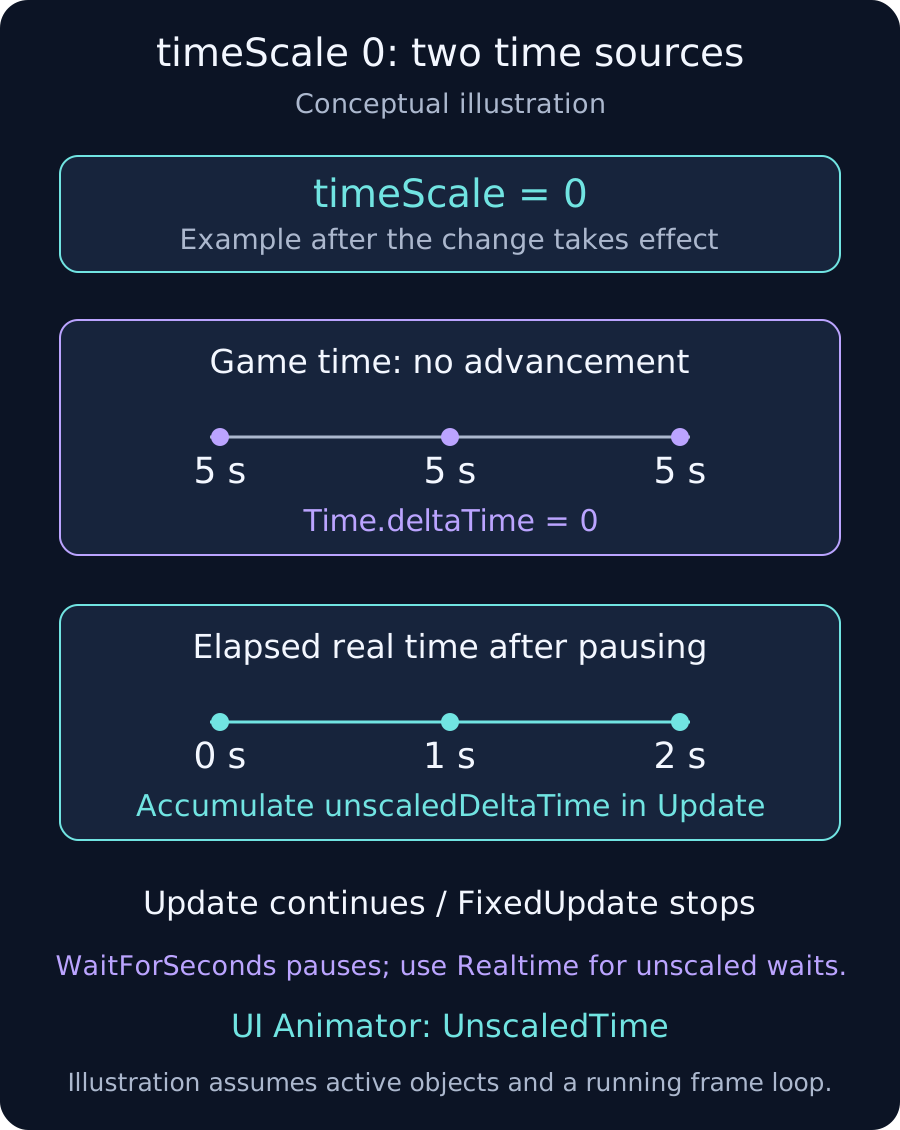
If a UI fade or wait stops after setting Time.timeScale to zero, inspect its time source. During an ordinary pause with the frame loop still running, Update continues, but progress accumulated using Time.deltaTime stops. This guide uses Unity 2022.3 LTS as its reference.
1. Decide what should stop and what should continue
- Gameplay: use scaled time for movement and in-game countdowns intended to pause.
- Pause UI: use unscaled time for menu fades and help animations intended to continue.
- Input: Update continues, so input and per-frame logic need not stop automatically. Gate gameplay controls with the pause state.
Changes to timeScale take effect on subsequent frames. Do not judge behavior from a single value read immediately after assignment.
2. Use unscaledDeltaTime for the intended UI progress
For a fade updated in Update, check whether progress uses Time.deltaTime. Use Time.unscaledDeltaTime only for the parts intended to continue. The diagram's zero, one and two seconds represent elapsed time after pausing, not a one-second unscaledDeltaTime on each frame.
Changing every system to unscaled time can let gameplay continue during a pause. Keep the choice scoped to the intended UI. FixedUpdate is not called while timeScale is zero, so reading unscaledDeltaTime inside it does not create paused-time callbacks.
3. Choose the coroutine wait clock
WaitForSeconds uses scaled time and does not advance its wait while timeScale is zero. A UI wait intended to complete during a pause can use WaitForSecondsRealtime inside a coroutine. For example, yield return new WaitForSecondsRealtime(2f); specifies a two-second unscaled wait.
This does not run UI code on a separate thread. Resumption follows frame processing, rather than guaranteeing execution at an exact instant. Setting the hosting GameObject inactive stops that coroutine itself; check lifetime separately from the selected clock.
4. Check Animator and additional pause logic
For a UI Animator intended to continue, inspect Update Mode Unscaled Time, or AnimatorUpdateMode.UnscaledTime in code. Also inspect code that sets Animator speed to zero or disables the Animator or GameObject.
Tweens and Timeline have their own clock settings. Explicitly define what continues rather than assuming timeScale pauses every feature, including audio and input.
5. Restore the previous state on resume
If gameplay was running at 0.5 before pausing, always resuming at 1 loses the previous slow-motion state. Let one owner retain the earlier scale and coordinate overlapping pause requests. If the implementation also changes Fixed Timestep, manage those values too.
Compare scaled and unscaled timers on an active UI object. Repeat pause, hold and resume, checking that only the intended processes advance.
Verify the complete pause cycle
- Check that pause UI remains usable and gameplay input follows the intended lock.
- Test fades, Animator and waiting coroutines independently.
- Check cancellation or cleanup when closing a menu or disabling its GameObject.
- In the target Player, resume correctly from slow motion and overlapping pause requests.